
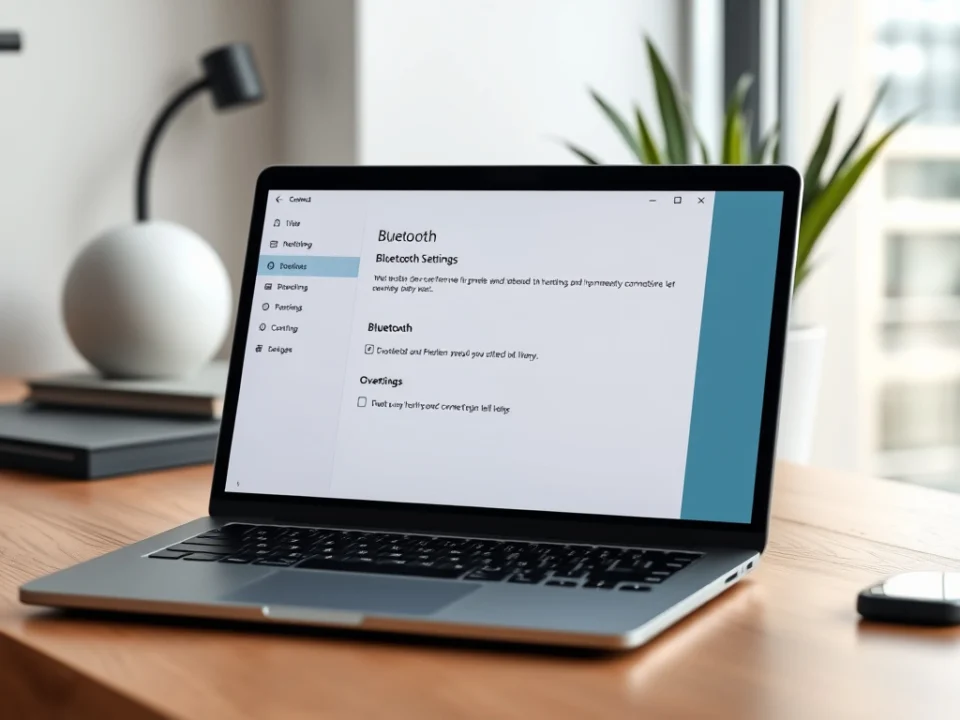
If you’re facing issues with Bluetooth not working or missing on your Windows 11 PC, you’re not alone. Bluetooth problems can arise due to driver issues, disabled services, or system configuration errors. This guide provides step-by-step instructions to help you restore Bluetooth functionality.
- Press Windows + I to open Settings.
- Select Bluetooth & Devices.
- Ensure Bluetooth is turned On.
If the option is missing, proceed to the next steps.
- Press Windows + R and type services.msc, then press Enter.
- Locate Bluetooth Support Service.
- Right-click it and choose Restart.
- If it’s disabled, select Properties and set the Startup type to Automatic.
- Right-click the Start menu and choose Device Manager.
- Expand Bluetooth.
- Right-click your Bluetooth adapter and select Update driver.
- Choose Search automatically for drivers.
If Windows can’t find a driver, visit your device manufacturer’s website for the latest version.
- Open Device Manager.
- Right-click your Bluetooth adapter and select Uninstall device.
- Restart your PC. Windows will reinstall the driver automatically.
- Go to Settings > Windows Update.
- Click Check for updates and install any pending updates.
Updating Windows can resolve compatibility and driver issues.
- Go to Settings > System > Troubleshoot > Other troubleshooters.
- Find Bluetooth and click Run.
Follow the prompts to let Windows automatically detect and fix issues.
If Bluetooth is still missing, it might be disabled in BIOS settings. Restart your PC, enter BIOS/UEFI using the allowed key (usually F2, F10, or DEL), and ensure Bluetooth is enabled.
In most cases, updating drivers, restarting Bluetooth services, or enabling the feature from BIOS resolves the issue. If you’ve tried all the steps and Bluetooth is still not functioning, consider contacting your device manufacturer or performing a system restore to a point when Bluetooth was working properly.