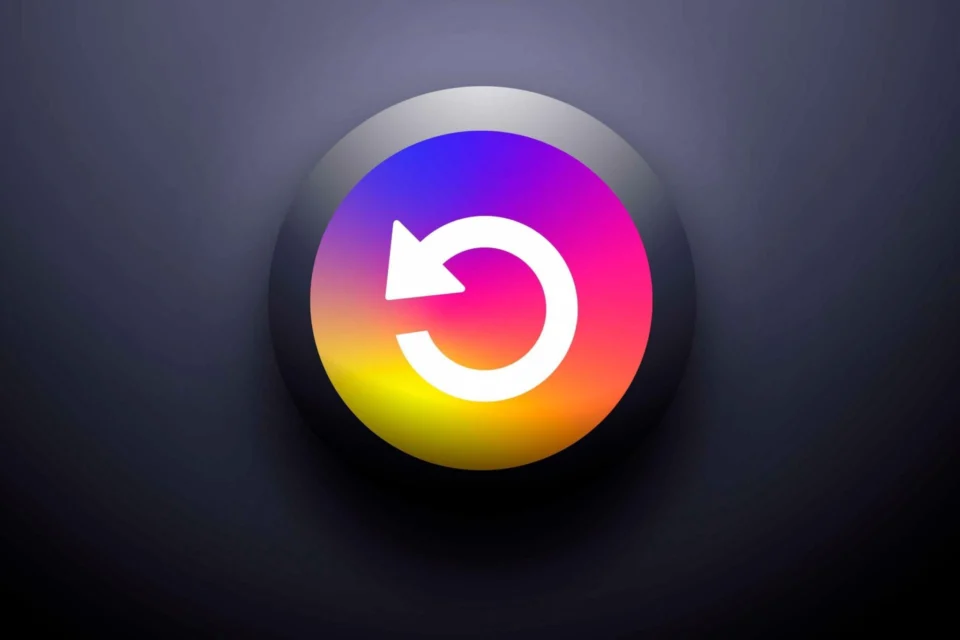
Understanding Instagram‘s Role in Daily Social Media UseInstagram is a key player in the daily lives of millions, providing a platform to connect, share, and engage with friends and followers. Despite its widespread use, Instagram is not immune to occasional glitches that disrupt its functionality. One of the most common issues users face is the “Instagram didn’t refresh feed” error, preventing new content from appearing in feeds or stories. So, how can you address this issue?Solutions to the Instagram Feed Not Refreshing Issue ✅The Instagram feed is the primary screen users see upon opening the app, featuring photos, reels, videos, and stories from followed accounts. When refreshing this page, encountering a “Could not refresh feed” error can be frustrating. This issue can stem from Instagram’s servers, but it might also be due to device-specific, account-related, or internet connection problems. Here are recommended steps if your Instagram feed isn’t refreshing:Verify your internet connectionLog out and then log back into InstagramClear the Instagram cache and restart your deviceUpdate or reinstall the Instagram appEnsure your device’s clock is set to automaticCheck Instagram’s server status1️⃣ Verifying Your Internet ConnectionA common cause of the Instagram failed to refresh feed error is a poor internet connection. Ensure your device has a reliable connection by checking your settings or visiting another website. Solving this might involve disconnecting and reconnecting to your Wi-Fi or mobile data. If issues persist, consider restarting your modem, performing a modem reset, or reaching out to your internet service provider. Resetting your smartphone‘s mobile data settings might also help.2️⃣ Logging Out and Back Into InstagramLogging out and back into your Instagram account can often resolve the feed not refreshing issue. This action can correct loading errors and other problems. It might be necessary to log out of all accounts within the app. Navigate to your profile, access the Settings menu, and find the logout option.3️⃣ Clearing Instagram Cache and Restarting Your DeviceAs you use Instagram, the app’s cache can fill up, potentially causing display issues. Clearing the cache and restarting your device can often resolve these problems. If you’re using Instagram via a web browser, clearing the browser cache should address the issue on that platform.4️⃣ Updating or Reinstalling the Instagram AppKeeping Instagram updated is another effective way to tackle the feed refresh error. Check the App Store or Google Play Store to ensure your app is current. If updating doesn’t solve the problem, uninstall and then reinstall the app on your device.5️⃣ Setting Your Device Clock AutomaticallyIncorrect date and time settings can lead to the Instagram feed refresh error. Confirm that your device’s time and date are correct, or adjust them to update automatically.6️⃣ Checking Instagram’s Server StatusIf Instagram is experiencing server issues, this may explain the feed error. Sites like Downdetector can confirm if Instagram is down. If widespread outages occur, waiting for Instagram’s team to resolve them might be the only option.Understanding the Causes of the Instagram Feed Refresh Error 🤔Instagram, like any platform, can experience glitches that hinder user experience. The “Flow not refreshed” error can arise from several causes, either platform-related or user-related. Here are key reasons you might encounter this error:Poor internet connectionOutdated Instagram app versionInstagram server issuesApp cache problemsIncorrect device date and time settings
Resolving Instagram Feed Refresh Issues
Discover quick fixes for Instagram feed refresh issues. Enhance your app experience and stay updated with seamless scrolling.
 YazanSigorta Haber
Yayınlandı Güncellendi 3 dk okuma

YAZAR
Sigorta Haber
Finans ve ekonomi alanında uzman. Piyasa analizleri, yatırım stratejileri ve makroekonomik gelişmeler üzerine içerikler üretir.
Yazar profili ve tüm yazıları