
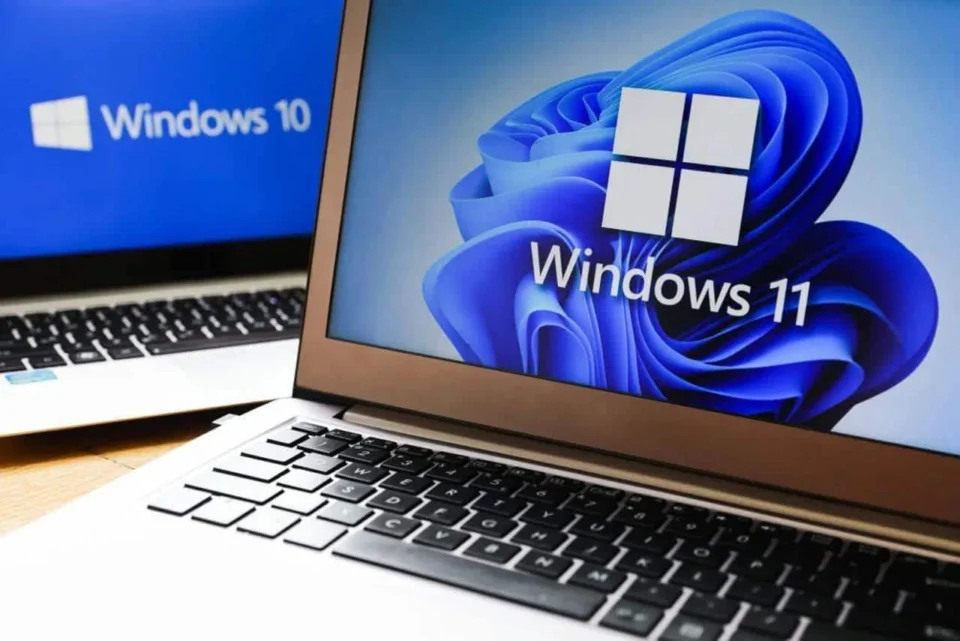
Understanding Your Windows Operating System Windows is the leading operating system for desktops and laptops worldwide, with a vast number of computers running on various Windows versions. Since its inception, Microsoft has released numerous versions, including 14 updates for Windows 10 alone. Currently, Windows 11 is the latest, with the 24H2 version being the most recent. Are you aware of the Windows version running on your computer? Here, we provide detailed methods to identify the version of Windows installed on your machine. Methods to Identify Your Windows Version 💻 While Windows 10 and 11 are primary versions, there are different editions such as Home, Pro, and Ultimate, referred to as “Edition” by Microsoft. For instance, Windows 11 24H2 represents the version number, and most modern systems run a 64-bit system type. Here are some ways to determine your Windows version 👇🏻 1️⃣ Determine Windows Version via System Settings ⚙️ The simplest method to check your Windows version is through the About section in system settings. Follow these steps to view the Windows edition, version, and build number: Click on the Windows Start menu. Select the Settings icon. Navigate to System – About. Here, you can view the Windows edition, version, and build number. Edition: This shows the Windows edition you are using: Home, Professional, Enterprise, or Education. Version: This indicates the Windows version, for example, 24H2. OS Build: This specifies the precise operating system build. System Type: Indicates if you are using a 32-bit or 64-bit version of Windows. 2️⃣ Verify Windows Version Using CMD ⌨️ The Command Prompt offers another method to discover the Windows version installed. By using the “winver” command, you can quickly ascertain the operating system edition, version, build, and more: Press Windows + R. Type “cmd” in the Run dialog box. In the Command Prompt window, enter the command “winver”. The Windows version and other details will be displayed. Understanding 32-bit vs. 64-bit Windows 🤔 It’s crucial to know whether your Windows is 32-bit or 64-bit for software compatibility. All Windows 11 installations are 64-bit, marking the first version where Microsoft does not support 32-bit. Windows 11 includes an x86 compatibility layer, allowing 32-bit applications to run, though installation on a 32-bit PC is not possible. For Windows 10, access the Start menu, click the Settings icon, and navigate to System – About. Under device properties, the System type field will indicate if the system is 32-bit or 64-bit. In Windows 8, follow the path: Settings > Change computer settings > Computer and devices > Computer information > Computer. The System type will show whether it’s 32-bit or 64-bit. For Windows 7, type “computer” in the search box, right-click on Computer, and go to Properties. The System type will reveal if Windows is running 32-bit or 64-bit. Knowing your Windows version is essential for installing the correct software, selecting the appropriate device driver updates, and following the right instructions for troubleshooting. With these straightforward steps, you can easily determine your Windows version and whether it’s 32-bit or 64-bit.
How to Determine Your Windows Version
Learn how to quickly find out your Windows version with easy steps. Identify your OS to ensure compatibility and optimal performance.
 YazanSigorta Haber
Yayınlandı Güncellendi 3 dk okuma

YAZAR
Sigorta Haber
Finans ve ekonomi alanında uzman. Piyasa analizleri, yatırım stratejileri ve makroekonomik gelişmeler üzerine içerikler üretir.
Yazar profili ve tüm yazıları