
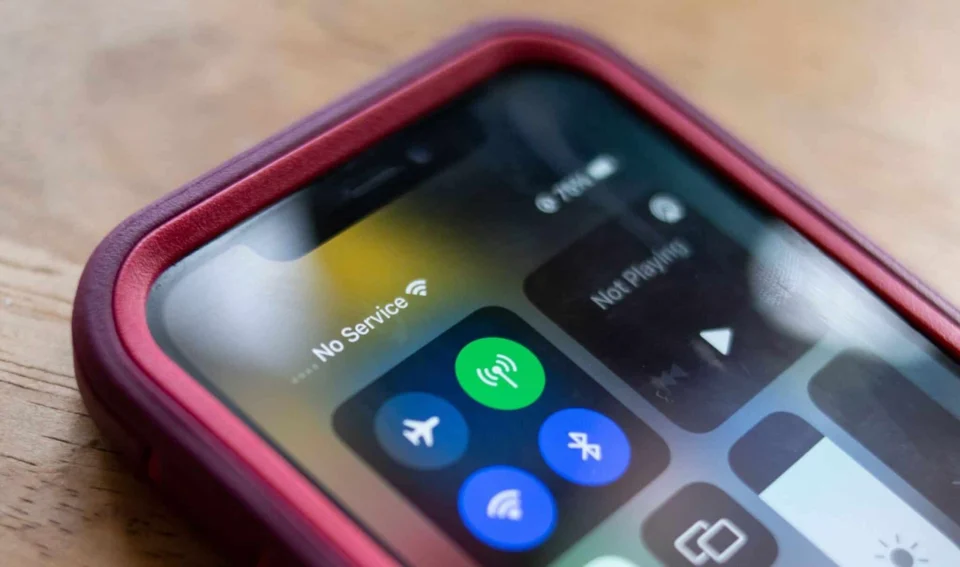
Understanding the iPhone No Service ErrorNo Service on an iPhone indicates that the device is unable to connect to a cellular network. This issue can arise from a variety of factors including poor coverage, outdated carrier settings, or software glitches. Let’s explore effective solutions to this problem.Steps to Fix iPhone No ServiceIf your iPhone displays ‘No Service’ or ‘Searching’ on the status bar, it means the device is not linked to a cellular network, thereby preventing you from making or receiving calls. Here are detailed steps to resolve this issue:1. Verify Network CoverageYour iPhone requires proximity to a cell tower to remain connected. If you are in a remote area, deep within a large building, or underground, you may lose signal. Check the signal bars and toggle cellular data:Open Settings on your iPhone.Tap Cellular.Switch Cellular Data on (green) or off (gray).2. Update Carrier SettingsCarrier settings contain essential information for network connectivity. Ensure these settings are current to avoid service issues:Open Settings on your iPhone.Tap General.Tap About. If an update is available, a prompt will appear.3. Toggle Airplane ModeAirplane mode temporarily disables network services. If active, it can cause a ‘No Service’ error. Toggle it from the Control Center or Settings:Swipe down from the upper right corner to access Control Center.Tap the airplane icon to enable (orange) or disable (gray) airplane mode.4. Re-seat the SIM CardFor non-eSIM users, a poorly inserted or damaged SIM card can cause connectivity issues. Remove and reinsert the SIM card to reestablish a network connection.5. Reset Network SettingsCorrupt network settings might be the root cause. Resetting them can help:Open Settings.Tap General.Select Transfer or Reset iPhone.Tap Reset and then Reset Network Settings.6. Enable WiFi CallingIn areas with insufficient cellular coverage, activate WiFi Calling to make calls over a WiFi network:Open Settings.Scroll to Phone and tap.Choose Wi-Fi Calling and toggle to enable.7. Restart Your iPhoneRestarting can refresh the device’s connection to the carrier. To restart:Press and hold the volume and side buttons until the power slider appears.Drag the slider to power off.Wait for the device to turn off, then hold the side button until the Apple logo appears.Potential Causes for iPhone Network IssuesEncountering a ‘No Service’ error usually occurs in locations with poor reception. Network issues could result from:Airplane mode being active.Being outside the carrier’s coverage area.Carrier-related technical problems.An improperly inserted or damaged SIM card.Incorrect network settings.iOS software glitches.Hardware malfunctions.When your iPhone displays ‘No Service’ or ‘SOS only’, it’s crucial to try the solutions outlined above to restore connectivity.
Resolving the iPhone ‘No Service’ Error
Discover effective solutions to fix the iPhone 'No Service' error and regain connectivity with our comprehensive troubleshooting guide.
 YazanSigorta Haber
Yayınlandı Güncellendi 2 dk okuma

YAZAR
Sigorta Haber
Finans ve ekonomi alanında uzman. Piyasa analizleri, yatırım stratejileri ve makroekonomik gelişmeler üzerine içerikler üretir.
Yazar profili ve tüm yazıları